
20 Master Bedroom Ideas for 2027
Looking for Bedroom Ideas that feel current in 2027 but still suit everyday life? A beautiful master bedroom should support sleep, storage,…
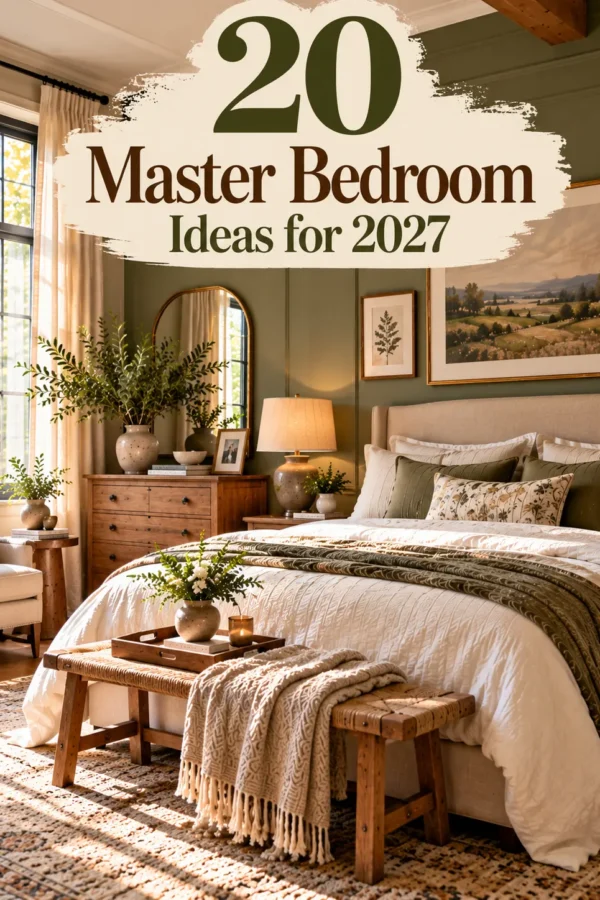
Looking for Bedroom Ideas that feel current in 2027 but still suit everyday life? A beautiful master bedroom should support sleep, storage,…

Looking for Halloween pumpkin carving ideas that feel at home with your furniture rather than like last-minute party props? The most memorable…
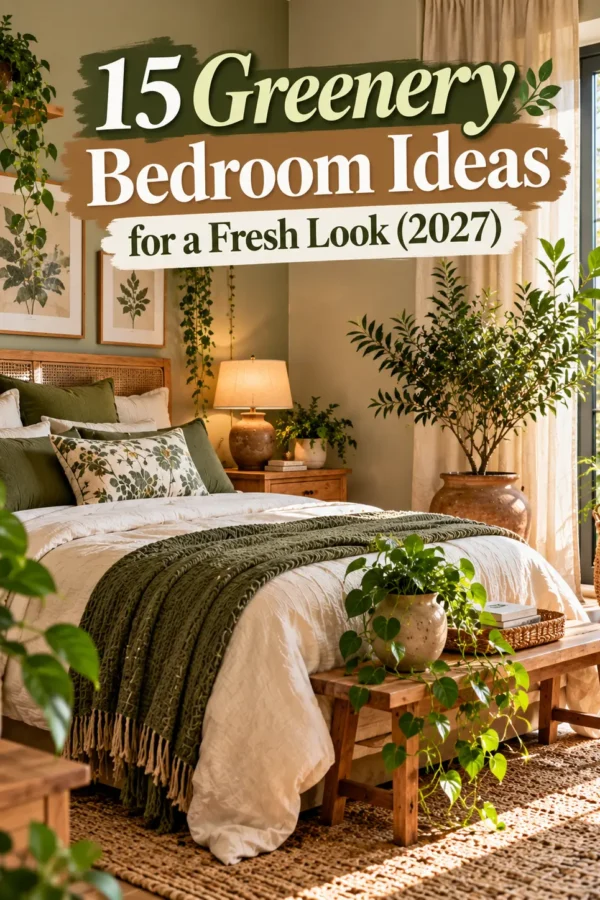
Greenery Bedroom Ideas can make a sleeping space feel fresher without requiring a full renovation. The key is choosing plants and botanical…

A wood kitchen can feel warm, modern, rustic, or quietly luxurious depending on the species, finish, and materials around it. The best…
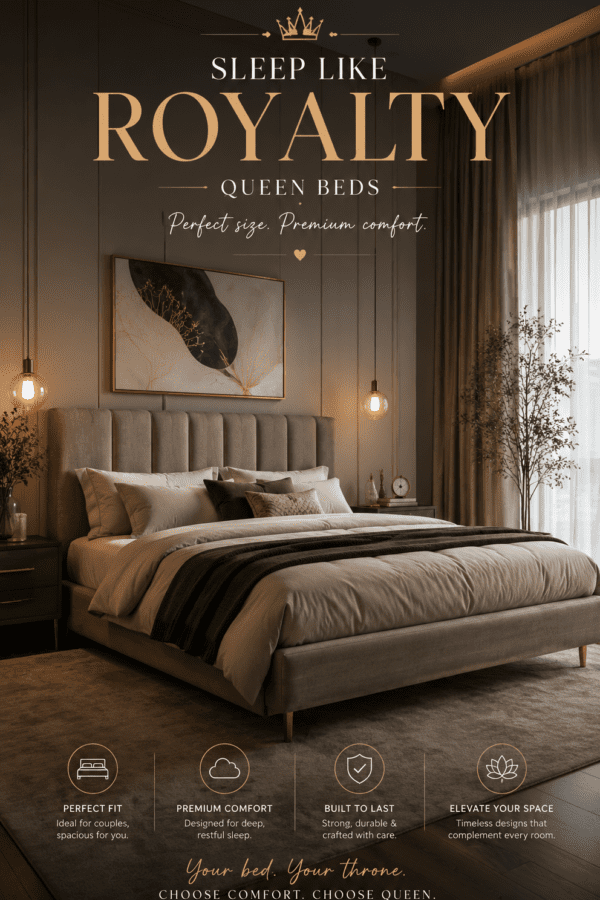
A queen bed often strikes the best balance between sleeping comfort and everyday floor space, but choosing one involves more than selecting…

Refreshing your bedroom does not require a complete renovation. These bedroom ideas for 2027 focus on comfortable materials, useful layouts, and details…
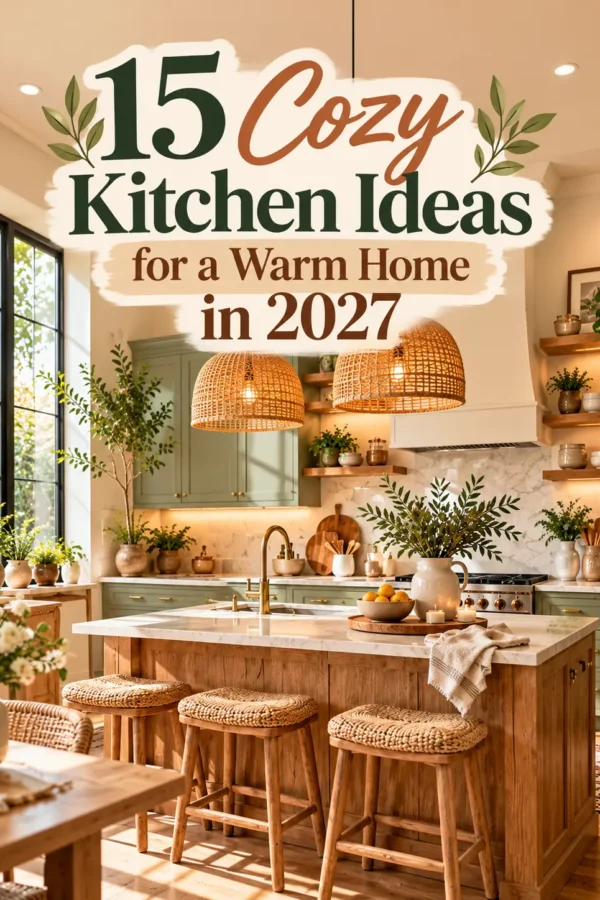
Comfortable kitchens are built around small decisions: warmer lighting, useful storage, softer textures, and places to pause. These kitchen ideas for 2027…
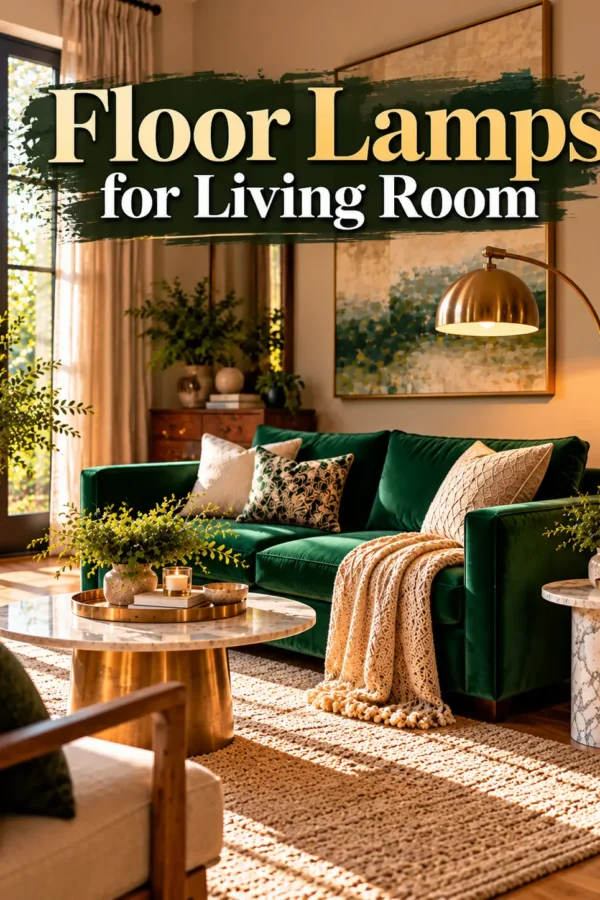
Choosing floor lamps for living room spaces in 2027 is less about following one trend and more about placing the right…
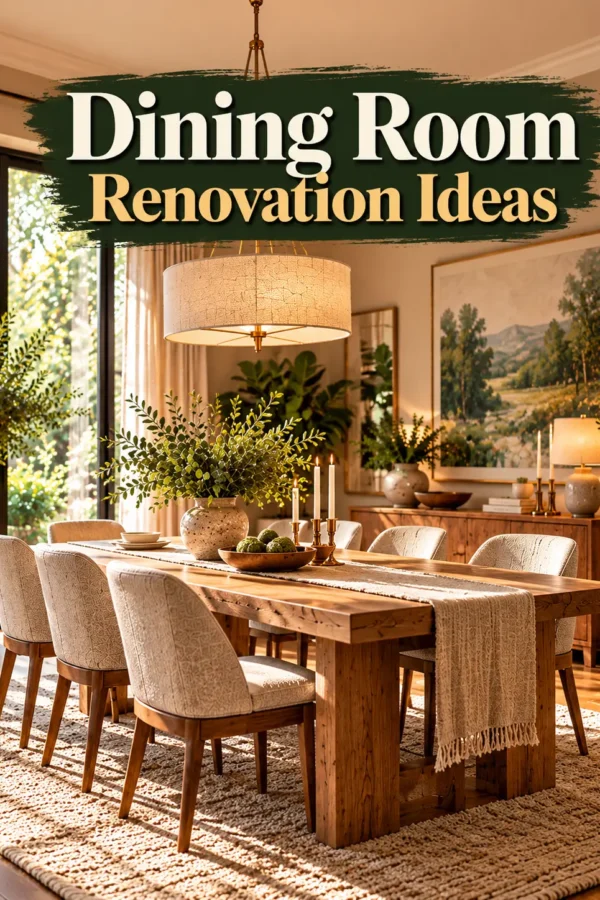
A dining room renovation does not have to begin with demolition. In 2027, the most useful updates combine comfortable seating, thoughtful lighting,…
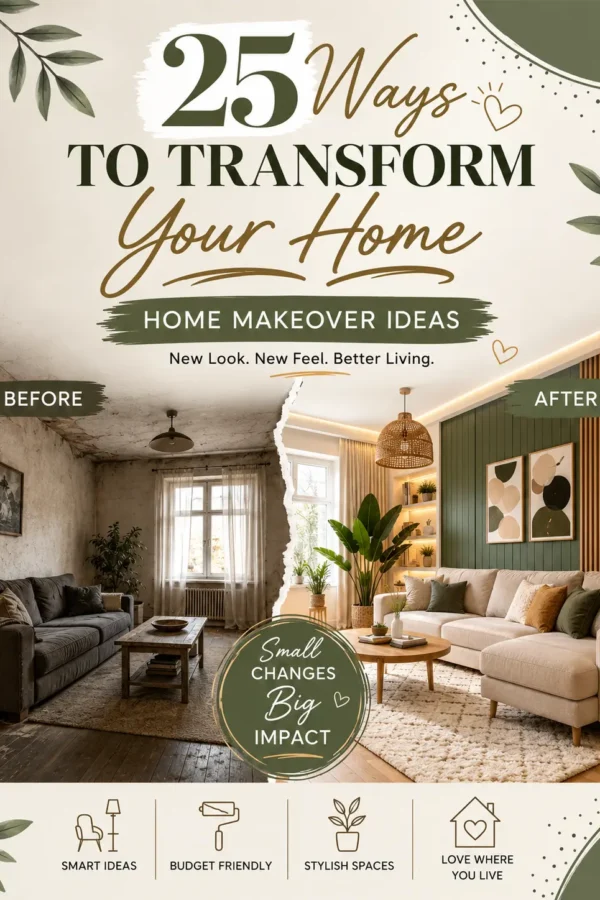
Your home should feel welcoming, practical, and unmistakably yours. Yet familiar furniture arrangements, outdated finishes, and poorly lit corners can gradually make…