
Ambient Room Lighting: Transform Your Home With Warm and Functional Design
Lighting does more than brighten a room; it defines its soul. A well-executed ambient room lighting strategy transforms cold, flat spaces into…
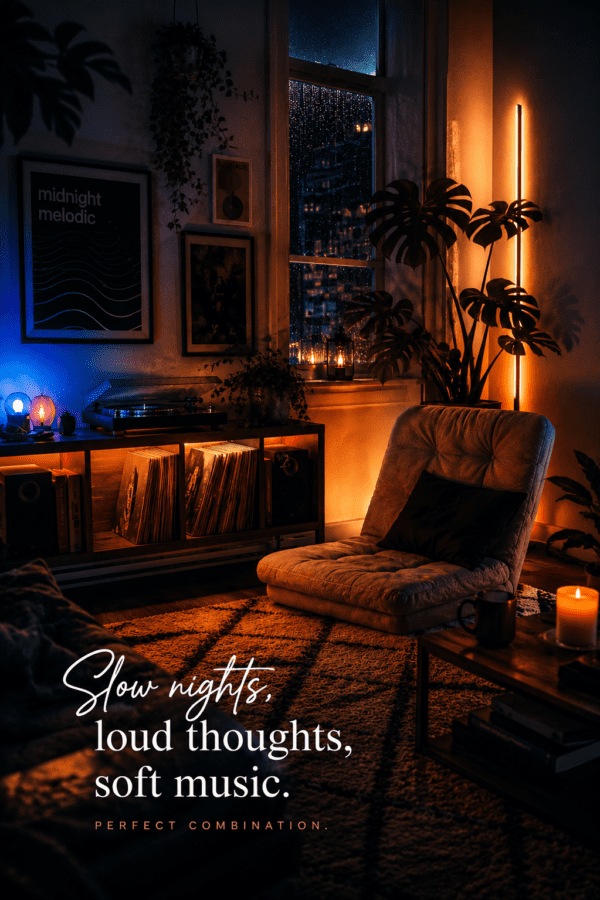
Lighting does more than brighten a room; it defines its soul. A well-executed ambient room lighting strategy transforms cold, flat spaces into…
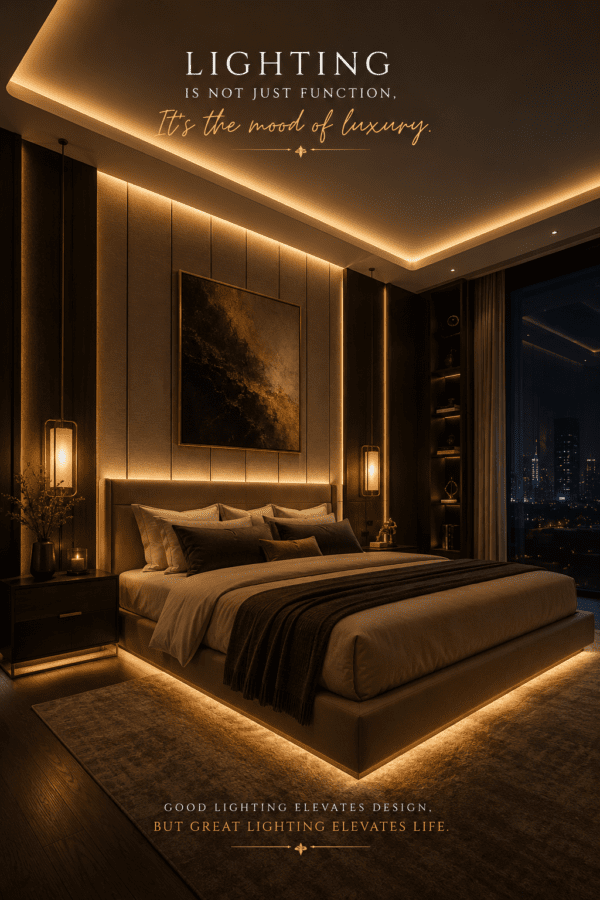
If you have spent any time on r/HomeDecorating or r/CozyPlaces, you know that Bedroom Ambient Lighting Reddit threads are a goldmine for…
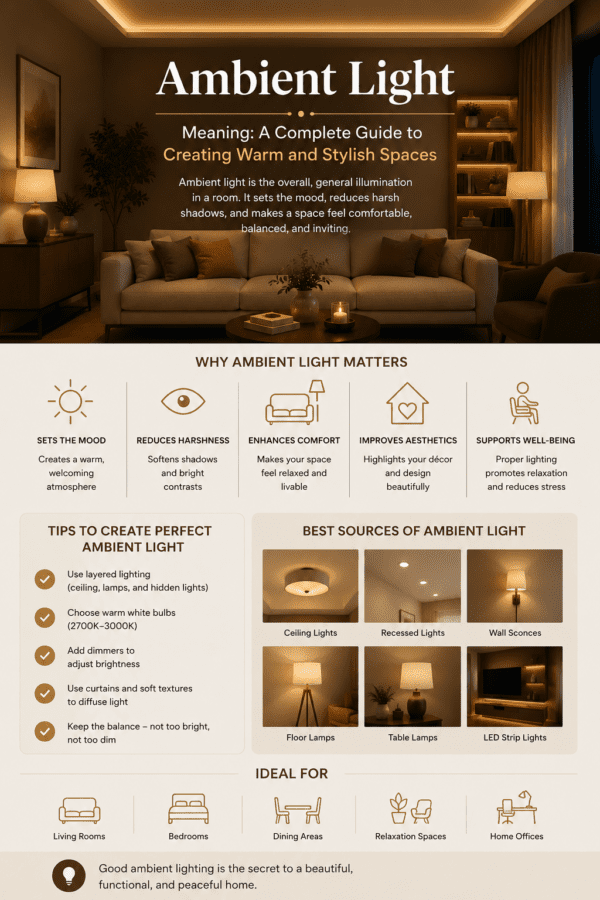
Ambient lighting is the heartbeat of a well-designed home. It serves as the silent, essential layer of design that effortlessly transforms a…

If you’ve ever wondered how to make your bedroom feel like a hotel, you’re not alone. Luxury hotel rooms are designed to…
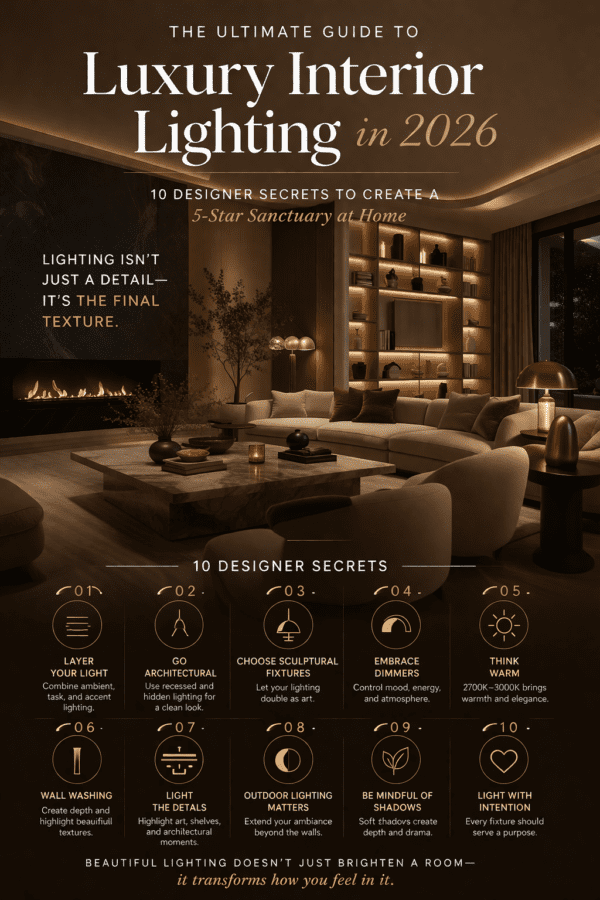
Luxury interior lighting ideas can completely transform the look of your home. The right lighting not only improves visibility but also adds…
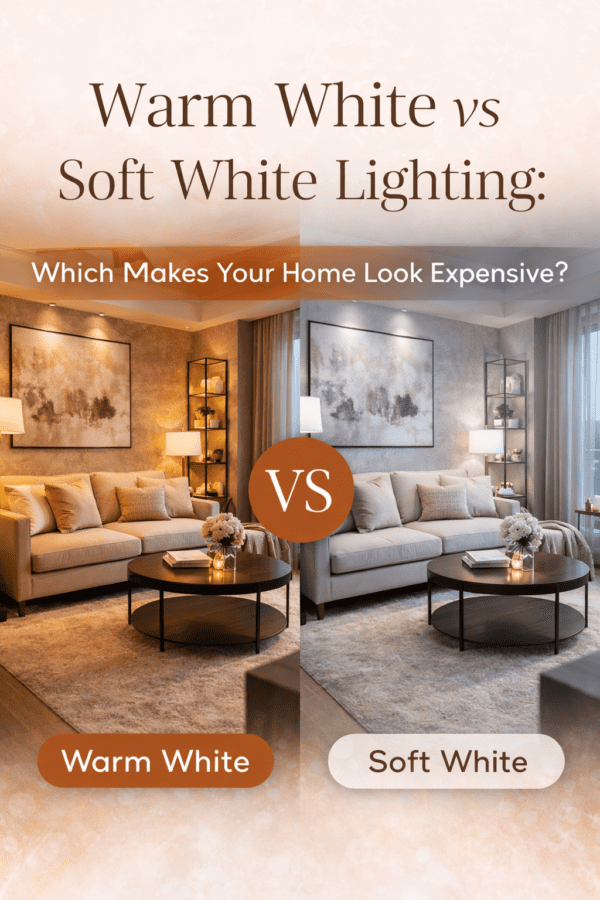
Have you ever walked into a beautifully decorated home and wondered why everything feels so expensive? Often, the secret isn't the furniture…
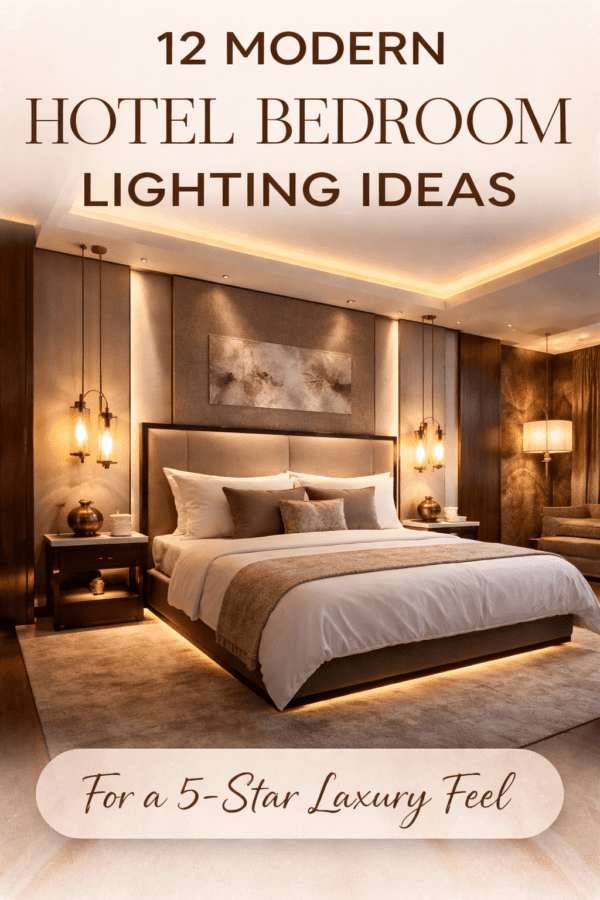
12 Modern Hotel Bedroom Lighting Ideas for a 5-Star Luxury Feel at Home Luxury hotels don’t just rely on furniture—they rely on…
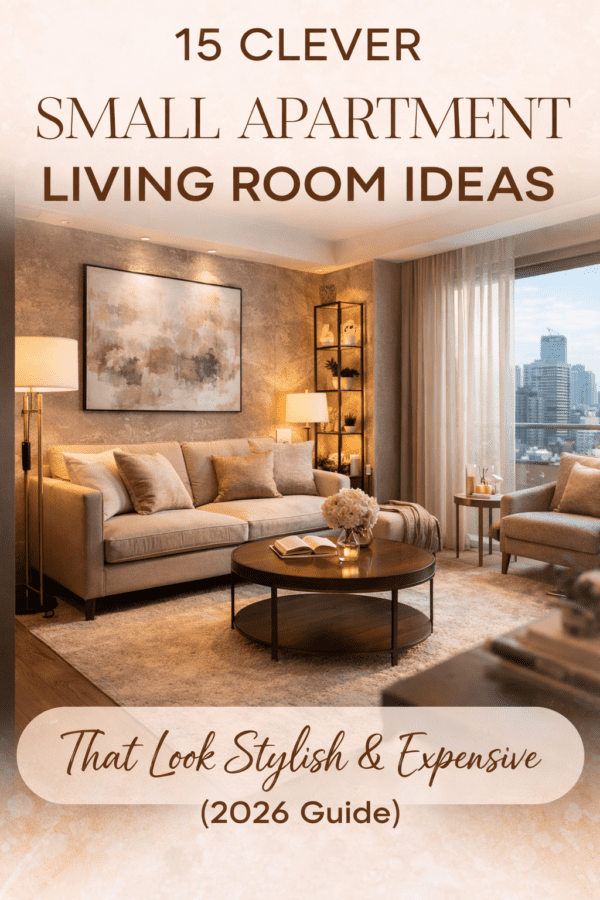
A small living room doesn't need expensive furniture or a complete renovation to feel luxurious. I've noticed that the most inviting spaces…
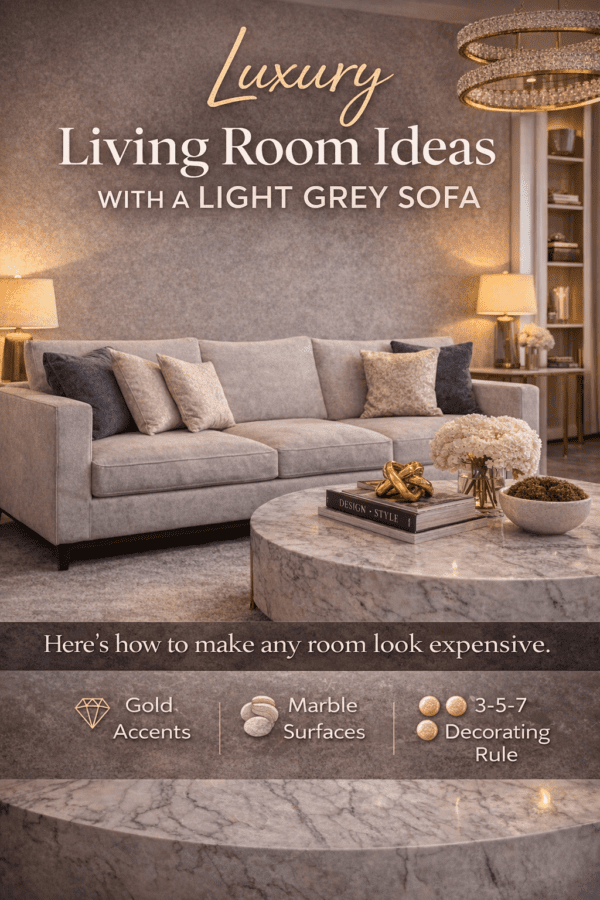
✦ Editorial Expertise This guide was researched and written by the Luxe Home Decor Editorial Team — interior styling specialists who have…
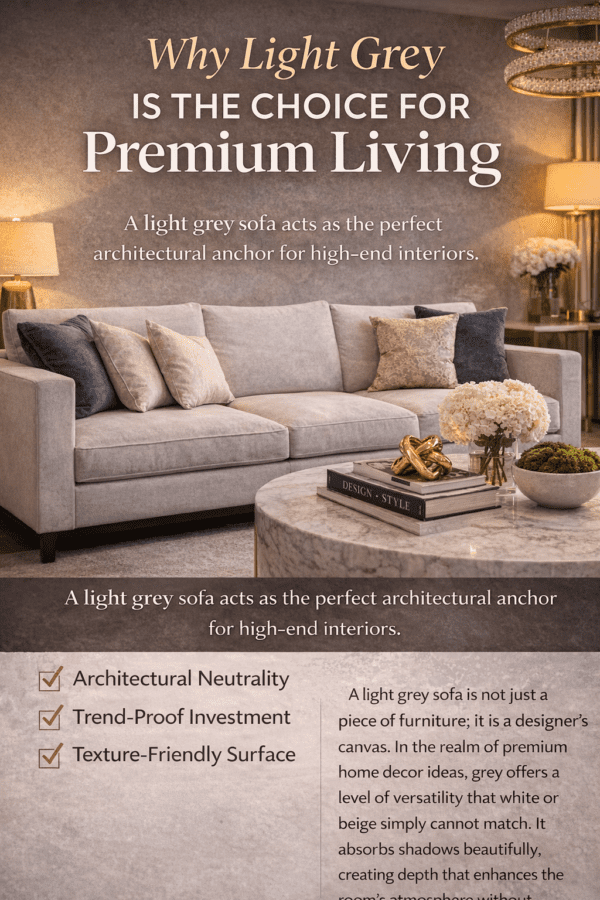
I never thought a single sofa colour could transform how my cramped flat felt — until I brought home a light grey…